Most webcam problems are not camera problems. They are sensor problems, lighting problems, and settings problems wearing a camera costume.
I have been on camera for eight years, first streaming on Twitch and now shooting corporate video in Austin, and the pattern never changes. Someone buys a new camera, plugs it in, and their face turns orange under a ceiling fan while the autofocus hunts like a dog at a window. The camera was never the weak link.
A working webcam setup for streaming is a sequence, and the order matters. Pick a camera whose sensor can actually gather light. Put light in front of you instead of behind you. Lock the settings so nothing moves while you talk. Do those three things and a modest 1080p camera beats a 4K camera in a dim room every time.
This guide covers the whole sequence: how to choose between a budget 1080p camera and a 4K PTZ unit, where to mount it, which settings to lock, and the OBS checks that catch problems before your viewers do.
Why you should trust me
I run a weekly podcast on camera, and I have built streaming setups in other people's offices, which means I have watched a lot of cameras fail in rooms nobody controlled. I do not care what the box says. I care what the sensor does when the only light in the room is a desk lamp.
The opinions in this guide come from that. A camera that needs proprietary software before OBS will see it is a toy. A camera whose autofocus hunts during a two-hour conversation is unusable no matter how sharp the still frames look. And a webcam microphone is a backup plan, never the plan.
I am not going to pretend every camera is great. The two below are the ones I would hand to someone who wants to start streaming this weekend.
How I picked the two cameras here
Three filters, in this order.
Sensor size before resolution. A 4K label on a tiny sensor is marketing, not quality. The chip decides how much light the camera collects, and light is what makes skin look like skin. The 1/1.3-inch sensor in the Insta360 below is doing more work than any resolution number printed on a box.
Autofocus behavior. Autofocus is a feature right up until it hunts. The best cameras let you lock focus, or track in a way that does not breathe during a normal conversation. If a camera cannot hold your face steady while you talk with your hands, it is out.
OBS compatibility without a driver fight. If it does not show up as a standard USB video device in OBS on the first try, it is a toy. Both cameras here do.
I also kept field of view in mind, because 90 degrees is right for a desk shot with a chair and a wall of shelves, and 65 degrees is right for a solo face shot where you want the background compressed by the lens rather than smeared by software.
Two cameras that fit this workflow
One is a renewed 1080p workhorse, and one is a 4K PTZ camera with a sensor that punches above its class. Both are the kind of gear you can build a setup around.
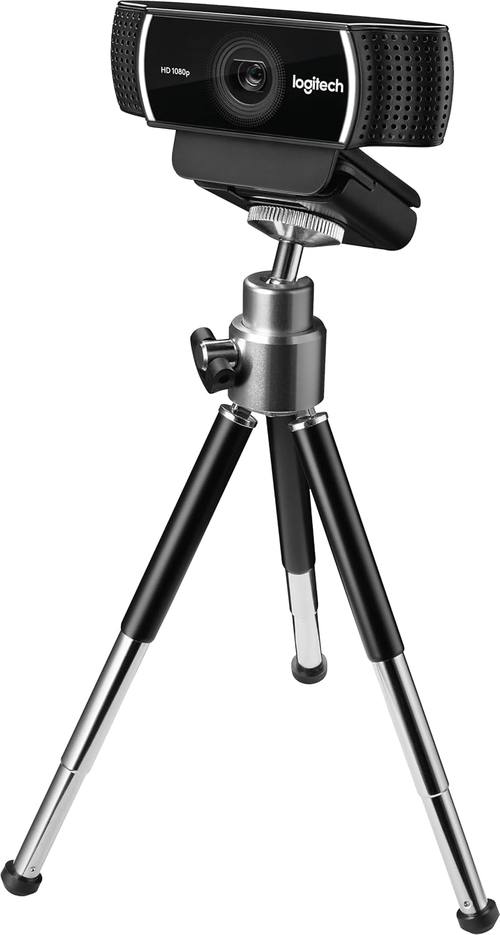
Budget pick: Logitech C922 Pro Stream Webcam 1080P
 Visit on Amazon →
This is the camera I point people at when they want to start streaming without spending real money. It is a 1080p webcam, it presents itself to OBS as a plain USB video device, and it does not ask you to install anything before it works. That last part matters more than any spec sheet.
The built-in stereo mics are fine as a backup, which is exactly how you should treat them. Get within arm's length of the camera and they are usable for a call. For a stream or a podcast, plug in a real microphone.
Because this listing is a renewed unit, read the seller terms before you buy and confirm what warranty is attached. Renewed webcams are a normal way to save money on a camera that will sit on a monitor arm and never move. Check current Amazon price and compare it against the new price before you commit.
Flaws but not dealbreakers: The sensor is small, so this camera needs light in front of it. Put it in a dim room and it will raise the gain, and your face will go soft and grainy. Its autofocus can also hunt if you lean in and out of frame, so lock focus if your software allows it.
This is the right camera for a first stream, a class, a remote job, or a second angle you want to add cheaply.
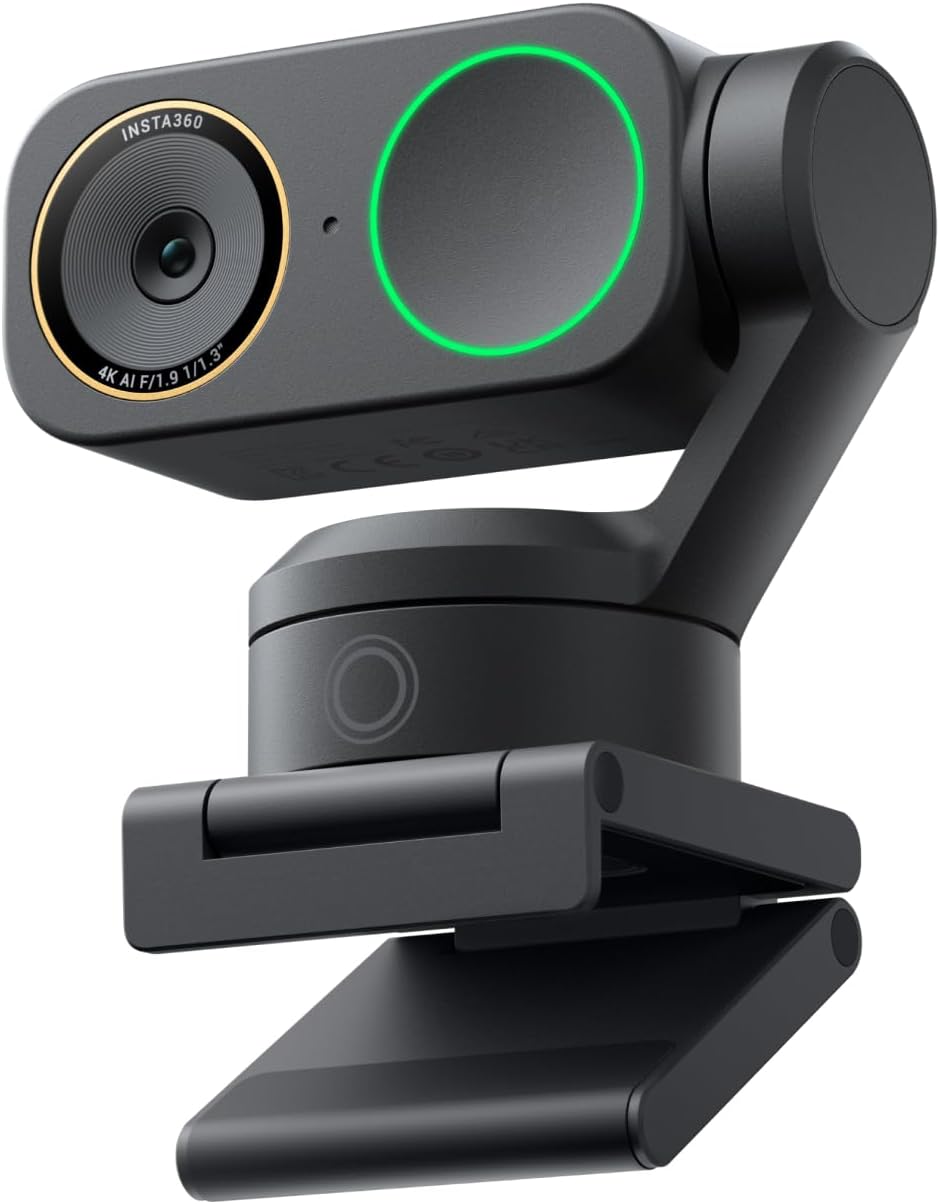
Upgrade pick: Insta360 Link 2 Pro 4K PTZ Webcam
 Visit on Amazon →
The listing name is the Insta360 Link 2 Pro, a 4K PTZ webcam for PC and Mac with a 1/1.3-inch sensor, low-light processing, AI tracking, HDR, directional noise-canceling mics, Stream Deck support, and compatibility with Zoom, Teams, and Twitch. That is a lot of feature list, so here is what actually matters.
The sensor is the reason to buy it. A 1/1.3-inch chip collects meaningfully more light than the tiny sensors in budget cameras, and low-light performance is the difference between a clean face and a noisy one when your room is not a studio. HDR matters if you have a window somewhere in the shot, because it holds detail in the bright background instead of turning it into a white rectangle.
The PTZ head is the second reason. Pan, tilt, and zoom with AI tracking means the camera can follow you when you stand up, walk to a whiteboard, or demo hardware on a desk. Stream Deck support matters more than it sounds, because you can trigger tracking presets and framing without alt-tabbing out of your scene mid-stream.
Check current Amazon price before you decide, since this tier moves around.
Flaws but not dealbreakers: You pay for the gimbal and the software. If you sit still in one chair for the entire stream, that money buys you very little. A motorized head is also one more thing that can move when you do not want it to, so set your tracking zones before you go live, not during. And a 4K camera eats USB bandwidth, so plug it directly into the machine rather than a hub.
This is right for presenters, teachers, whiteboard work, and anyone who stands up and moves around on camera.
The setup workflow, step by step
Order matters here. Settings first, then hardware, then light, then the live test.
Step one: Mount it at eye level. A camera below eye level looks up your nose. A camera above eye level looks down at you. Aim for the lens at roughly eye height, or a touch above, tilted down a few degrees. Laptop lid cameras are the worst case, so raise the laptop or use a stand.
Step two: Frame with intent. Eyes in the upper third of the frame, a little headroom, shoulders visible. Do not center your head in the middle like a passport photo. If you stream with a game or slides on screen, leave space for the overlay before you lock the shot.
Step three: Choose resolution and frame rate. For talking-head streaming, 1080p at 30 fps is plenty. If you move your hands a lot or you stream games, 720p at 60 fps looks smoother. If you own a 4K camera, capture 4K and let OBS scale down to 1080p, because downscaling hides noise and gives you cleaner edges. Do not stream native 4K unless your upload and your encoder can actually carry it.
Step four: Turn off auto everything. Auto exposure, auto white balance, and auto focus are the three settings that ruin streams. Auto white balance drifts when you move and the wall behind you changes. Auto exposure pumps when you wear a white shirt. Lock white balance once your lights are on and leave it alone. Lock exposure and set it once. Lock focus if you sit in one spot.
Step five: Kill the flicker. Light sources and frame rates argue with each other, and the result is banding across your face. Shooting 30 fps in a 60 Hz region, keep your shutter at 1/60. Shooting 60 fps, use 1/120. Most webcam software hides this, but the cameras that expose it are the ones that look clean under cheap LED bulbs.
Step six: Light yourself before you upgrade anything else. One light, 45 degrees off your face and slightly above eye level, diffused. No window behind you. A cheap light in the right place beats a better camera in the wrong light, and it is not close. If your eyes have shadows under them, the light is too high. If the background is brighter than your face, move the light or move yourself.
Step seven: Set the field of view. Use 90 degrees for a desk with a chair and shelves. Use 65 degrees for a solo shot where you want a tighter frame. Change it in the camera's own software or controller app, not with a digital zoom in OBS, because digital zoom crops pixels and softens the image.
Step eight: Treat the webcam mic as a backup. The camera mic is a safety net for the day your real mic dies. If you have to use it, get close and put the camera between you and the noise source, not next to the fan. The directional noise-canceling mics on the Insta360 are better than most built-in options, and they are still a backup.
Step nine: Test before you go live. Record sixty seconds locally, watch it back with the sound on, and look for three things: focus breathing, color shifts, and audio hiss. Then open OBS and confirm the camera is on a direct USB port rather than a hub, especially at 4K. Finally, run your full scene once with the overlay, the alerts, and the game capture, and make sure the camera does not drop frames when everything else fires at the same time.
The pre-flight checklist
Before every stream: lights on and white balance locked after the lights settle, focus confirmed on your face, mic peaking well below clipping, camera at eye level, background clear of laundry, and one local recording to confirm nothing changed since last time. Ninety seconds of paranoia saves a two-hour stream.
The competition and why it lost
The Logitech Brio, Elgato Facecam, Logitech C920, Razer Kiyo Pro, and the first Insta360 Link are all real cameras with real cases. The Brio is the best all-rounder, the Facecam is built for streamers, the C920 is still the budget king, the Kiyo Pro wins in low light, and the original Link is a presenter camera. They are not in this guide because this guide is about two specific price tiers and a repeatable workflow, not a wall of options.
The one rule I would carry into any of them: skip any camera that claims 4K on a tiny sensor. That is a 1080p sensor wearing a sticker, and a sticker does not gather light.
What this all costs
The budget path is a renewed 1080p camera plus whatever light you already own. The upgrade path is a 4K PTZ camera with a large sensor, tracking, and HDR. Check current Amazon price on both before you decide, because renewed stock and webcam pricing move around more than people expect.
The honest math: if you sit still in one chair and talk, the budget camera plus a good key light is the better spend, and the leftover money belongs in a microphone. If you present, teach, demo hardware, or walk around, the PTZ camera earns its keep because tracking replaces a camera operator.
Either way, do not buy a camera to fix a lighting problem. Put a light in front of your face first, lock the settings, and then decide whether the camera you already own is the thing actually holding you back. Most of the time it is not.