Most people blame the webcam. They buy a new one, plug it in, and look exactly the same as they did before, because a webcam setup for streaming is about twenty percent hardware and eighty percent three things almost nobody changes: where the camera sits, where the light comes from, and whether exposure and white balance are locked.
I have been on camera for eight years, first streaming on Twitch and now shooting corporate video plus a weekly podcast with a lens pointed at my face. The pattern never changes. The person with the cheapest camera and a window in front of them looks better than the person with the flagship and a window behind them. Fix the free stuff first, then decide whether you need new hardware at all.
This is the order to do it in, and the two cameras I would actually start with if the free stuff is not enough.
Why you should trust me
I stream, I record, and I do paid video work, which means I have set up webcams on other people's desks as often as my own. Eight years of that leaves you with a short list of things that hold up no matter what the box says. The sensor is the camera, and 4K printed on a tiny chip is marketing, not quality. Lighting beats hardware every single time. Autofocus is a great feature right up until it hunts in the middle of a sentence. And if a camera will not work in OBS without a driver fight, it is a toy with a lens.
I also have opinions I will defend in public. The Logitech C920 is still the budget default a decade on. The Elgato Facecam is the streamer's pick because you can stop it from hunting. Any webcam that claims 4K on a sensor the size of a grain of rice is a 1080p sensor with a sticker on the box.
What actually decides how you look
Four things matter, and only one of them is resolution.
Sensor size. This is the actual imaging chip. A bigger sensor captures more light, and more light is what separates a clean image from a noisy one. Resolution is a number you can print on a box. Sensor size is a number you have to look up, which is exactly why the box does not mention it.
Field of view. How much of the room the camera sees. Around 90 degrees is right for a desk setup where you want to show a bit of the space behind you. Around 65 degrees is right for a solo face shot. Too wide and your face turns into a small pale blob in the middle of a bedroom.
Frame rate. 1080p at 60 frames per second looks smoother than 4K at 30 when you move, gesture, or lean in. If you play games on stream, 60 frames per second is not optional.
Control. Can you lock exposure, lock white balance, and lock focus, or does the camera decide for you in the middle of a take? Cameras that let you lock things down are worth more than cameras with a bigger number on the front.
None of that matters as much as light. A mid-range webcam in good light beats a flagship in bad light, every time, and I have watched that happen on my own desk more than once.
How I picked these two
I am not interested in a list of twelve cameras. I am interested in two: one that solves the most common problem for the most people, and one that solves the specific problem of a room with no usable light.
Both of the cameras below are plug-and-play USB devices, which matters more than people admit. If a camera needs a proprietary app just to change its brightness, it is one operating system update away from being a paperweight. Both of these also do the job that most people actually need, which is a clean 1080p image at a frame rate that does not stutter.
The webcams I would start with
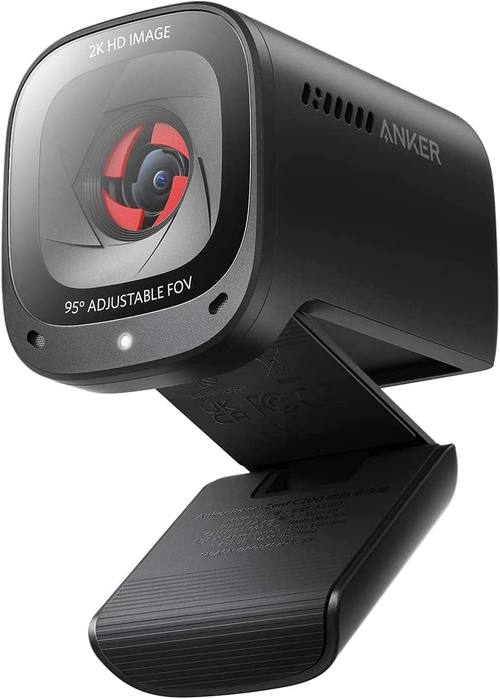
The everyday pick: Anker PowerConf C200 2K Webcam for PC/Laptop/Mac, Low-Light Correction
 Visit on Amazon →
This is the one I would hand to most people who ask me what to buy for calls, meetings, and a casual stream. It shoots 2K, which gives you real headroom to crop and reframe in software without the image falling apart, and it works on PC, laptop, and Mac without a driver installation ritual. Check current Amazon price.
The interesting part is in the name: low-light correction. That is the camera making a processing decision on your behalf when the room is dim, and it is genuinely useful for a home office where you cannot control the light. It is not a substitute for a lamp. When correction has to work hard, it smooths noise, and smoothing noise also smooths skin texture, so a face can come out looking slightly plastic in a genuinely dark room.
Flaws but not dealbreakers: There is no built-in light, so if your room is dim you are pairing this with a lamp or a ring light anyway. And the resolution is 2K, not 4K, which only matters if you are cropping heavily or shooting for a client who insists on a 4K delivery.
Anyone who spends their day in Zoom and Teams, and who streams casually in the evening, will be happy with this for years.
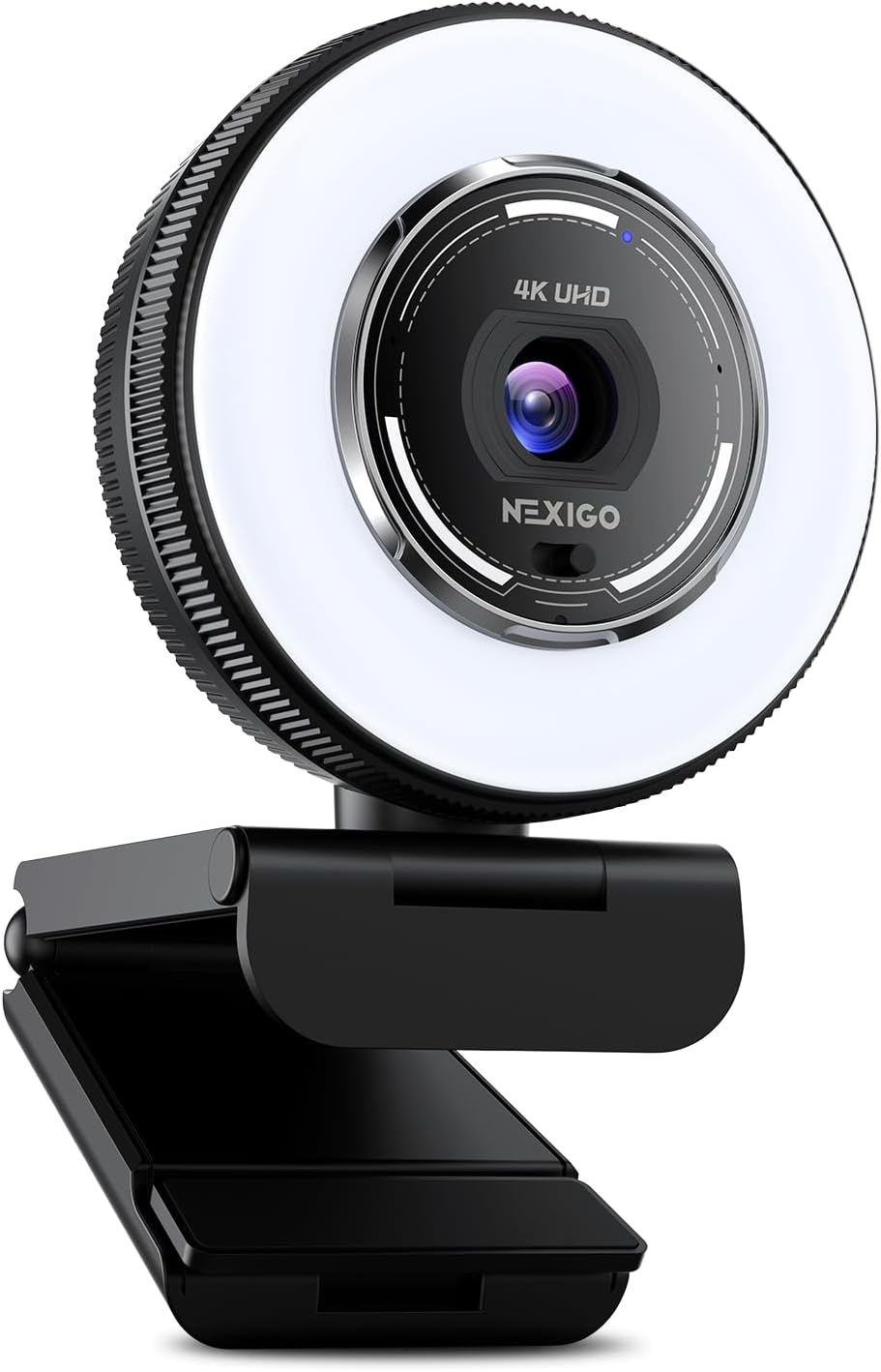
The pick with a built-in ring light: NexiGo N680E Pro 4K Webcam with Ring Light, PDAF Autofocus, 1080p 60FPS, Dual Noise-Canceling Mics, Privacy Shutter, USB Plug-and-Play for Zoom, Teams, Twitch, Google Meet
 Visit on Amazon →
This is the camera for the person whose biggest problem is that their room is dark and they are never going to buy a light. The ring light is built into the housing, so the fix for the number one webcam complaint ships in the same box as the camera. Check current Amazon price.
Two specs on this one deserve a closer read than the marketing. The first is the frame rate: 1080p at 60 frames per second. That is the mode you will actually stream in, and it is the mode that keeps motion smooth when you gesture or lean in. The second is the autofocus, which uses phase detection rather than the slower contrast method, so it locks onto a face faster and hunts less when you move around. It is still autofocus, so treat it as a feature you should be able to override, not one you should trust blindly.
The rest of the spec list is genuinely practical. There is a privacy shutter, which is a physical cover you can slide over the lens, and I will take a physical shutter over a software toggle every time. There are dual noise-canceling mics, which are fine as a backup. And it is USB plug-and-play across Zoom, Teams, Twitch, and Google Meet, which means no driver fight on a Sunday night before a Monday call.
Flaws but not dealbreakers: A ring light sits on the same axis as the lens, which is the least flattering place for a light. It flattens the face, throws a ring-shaped catchlight in your eyes, and can hotspot your forehead if you run it at full power. Treat it as fill, not as your only light, and turn it down until your skin stops glowing. Also, "4K" on a webcam is a claim to check rather than trust. Look up the sensor before you pay a premium for it, and remember that 1080p at 60 frames per second is what your stream is actually being watched at.
Anyone who streams in a room with no window and no lamp, and wants one purchase to fix that, should start here.
The actual setup workflow
Do these in order. The first four are free and they will do more for your image than any camera purchase.
Step one: Get the camera to eye level. The single most common mistake is a webcam sitting on a laptop screen or a low monitor, aiming up at a chin. Put the lens at your eye height, or slightly above, and angle it down a few degrees. If you have to stack books under it, stack books under it.
Step two: Put light in front of you, never behind you. A window behind your chair turns you into a silhouette. A window in front of you turns a cheap webcam into a good one. If you have neither, put a lamp behind the camera, just off to one side, and aim it at your face. That is the entire secret, and it costs nothing if you already own a lamp.
Step three: Lock exposure if you can. Auto exposure reads the whole frame, so the moment you wave a white sheet of paper or a bright window enters the shot, the camera darkens your face to compensate. If your camera exposes exposure control to your operating system or your streaming software, set it manually and leave it. If it does not, control the light instead so the camera has less to react to.
Step four: Lock white balance. Auto white balance drifts as light changes, which is why you sometimes see a streamer slowly turn orange over two hours. Set it once, around 5000 to 5600 Kelvin if the camera offers a number, and check it again after you change any light in the room.
Step five: Deal with autofocus. Autofocus that hunts is the number one webcam annoyance, and it always hunts when you move a hand or a mug crosses the frame. If the camera lets you switch to manual focus, set it once at your normal sitting distance and leave it. If it does not, keep your hands out of the zone between your face and the lens.
Step six: Pick your resolution and frame rate on purpose. For talking-head streaming, 1080p at 30 frames per second is plenty and it is gentle on your encoder. For gaming or anything with fast motion, go to 1080p at 60. Only step up to a higher resolution if your computer can encode it without dropping frames, because a stuttering 4K stream looks worse than a smooth 1080p one every time.
Step seven: Frame yourself like a person, not a passport photo. Leave a little headroom above your hair, put your eyes about a third of the way down the frame, and keep your shoulders in shot. Sit closer if the field of view is wide, or move the camera closer if the field of view is narrow. The goal is that the viewer sees a face, not a room with a face somewhere in it.
Step eight: Test before you go live. Open your streaming software, add the camera as a source, and record thirty seconds. Watch it back with the sound on. This catches the things you cannot see while you are sitting in front of it, including a light that is flickering at a frequency your eye ignores but the camera does not.
OBS settings that matter
Add the camera as a Video Capture Device source, then open its properties. If the camera exposes its controls to the system, you will find exposure, white balance, and focus in a configuration panel attached to that source, and that is where you lock them. If the camera hides those controls behind its own app, set them there instead and then confirm the settings actually stuck, because some apps apply changes only to their own preview window and not to the stream.
Set the resolution and frame rate in the source properties rather than leaving them on "default," so you know exactly what you are sending. Scale the source to fill your canvas, and resist the urge to zoom in digitally, because cropping a webcam image is the fastest way to make it look soft.
Audio is a separate job. The mic on a webcam is a backup plan, not the plan. If your audience can hear a fan, a keyboard, or the room echo, no amount of camera quality will save the stream.
Mistakes that make a good webcam look bad
Backlighting is the big one. Sitting with a window behind you and wondering why you look like a witness sketch is the most common setup failure I see, and it has nothing to do with the camera.
Second is over-lighting from directly overhead. Ceiling lights drop shadows into your eye sockets and under your nose, which is unflattering on everyone. Get the light in front and slightly to one side.
Third is chasing resolution. Buying a camera for its 4K badge while streaming in a dark room is buying a faster car to drive through a swamp. Fix the light, lock your settings, and let a mid-range camera do its job.
What this all costs
The honest math is that the free steps come first. Moving your desk to face a window, raising the camera to eye level, and locking exposure costs nothing and fixes most of what people hate about their image.
After that, a camera is a one-time purchase, and both of the models above are built to sit on a desk for years without a driver fight. The Anker is the one I would buy for calls and everyday streaming. The NexiGo is the one I would buy for a dark room where the built-in ring light does the job a lamp would otherwise do. Check current Amazon price on both before you decide, because the gap between them moves.
The order matters more than the purchase. Light, then position, then locked settings, then hardware. Do it in that order and you will get more out of a camera you already own than most people get out of a new one.